Illustrator Tutorials

Graphic design

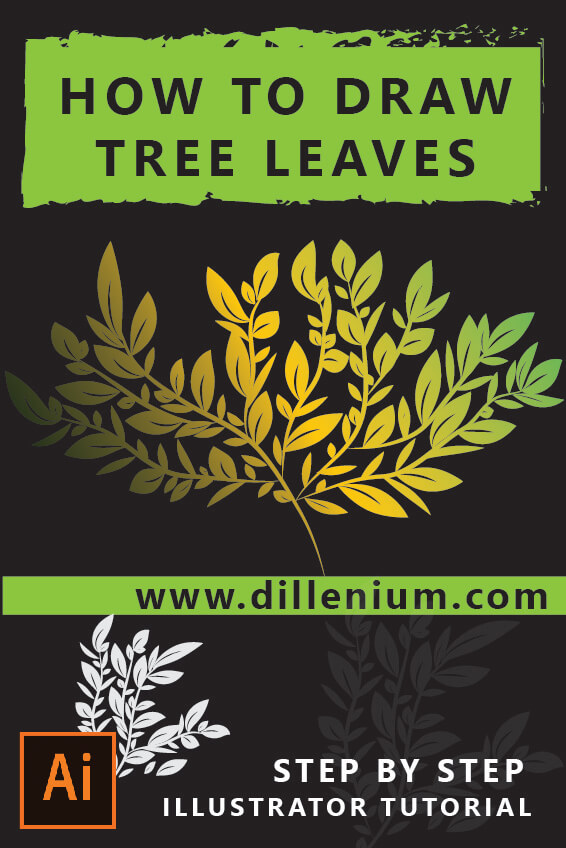
Tree Illustration Vector – How to Make Leaf Brush – Illustrator Tutorials

Tree Illustration Vector (Video): Here is a quick and easy adobe illustrator video tutorial for beginners looking at how to make leaf brush to create a tree within 5 minutes. Very simple and easy to follow steps and make a tree to add in your branding projects. In this tutorial, first, we will create a leaf brush that will help to drag leaves around the tree. Simple quick and easy way to do using the brush. For this, we will create 2 types of brush one with stripe and other without stripe. In the next phase, we will pack the tree with brush leaves. It’s a fun part of this design. If you are doing this first time you will surely enjoy this step. I personally loved it. Instant Download: Vector Tree Illustration (PNG) – Transparent File SEE ALSO: 25 Illustrator Tutorials for Beginners Vector Leaf Illustration Video (Step by Step) Quick and easy way to work on vector tree illustration. Let’s delve into it. Format: AI  Illustrator Version: CS6 Resolution: 300 PPI Color Mode: CMYK How to Make Leaf Brush and Vector Tree (Step by Step) Open new file in Adobe illustrator. Set the artboard. Now create a background layer using the rectangle from the shape tool. Used white-gray background color. Press Ctrl 2 to lock the layer. Make a Leaf Illustration: Choose the ellipse tool from the shape section and drag a small oval on artboard. Keep it black in color without a stroke. Select the oval. Now go to Pen tool and choose Convert ‘Anchor point tool’ option. Click on both edges of the oval to make it pointed and sharp. Now it will show the structure of leaf. Take a copy of this and keep on the side. Now using pen tool, create a curved stripe and keep it at the middle of first leaf at the bottom edge. Select leaf and strip together and go to Window – Path Finder. Select Subtract option. It will show the striped leaf structure. Click on another leaf and make it longer and slim. Now both leaves are ready to go to brush library. Let’s Make Leaf Brush: Now go to Window and choose Brush or Press F5 to open brush window. Drag the first leaf in brush library to create Art Brush. Check the settings from the video and click ok. Use the same setting and create another brush. Now remove leaf from artboard as it’s been added to brush library. Let’s Make Tree Branches: To make tree branches, select leaf without strip from the brush library and using the paintbrush tool with minimum stroker size draw random branches as showing in the video. Now select all branches and go to Object – Expand Appearance. Group all the layers. Change the color to brown. Let’s Draw the Leaves: Pick the Brush option from the tool section. Select striped leaf from brush library. Properly set the stroke size to make the perfect leaf. Now drag leaf on branches as showing in the video. Pack the tree with striped leaf Now repeat the same method and drag the nonstriped leaf on tree. Make smaller, bigger and longer tree to create a complete tree structure. Let’s Color the Leaves: Now select each and everything together and go to Object – Expand Appearance. Change the color by choosing the default gradient. Open Gradient Window (press Ctrl F9) Now add color shades of light green, yellow and dark green. Select everything and use the blend option to make a smooth look of tree. Now the tree is ready to save and import.       5 Key Points to Drag Perfect Leaves on Tree It’s important to understand the hand formation while dragging your leaves on branches. Here I am sharing some key points based on my best practices. Try to drag leaves with different stroke sizes. Choose the best stroke size to place on the leaf. Hand formation is important. Drag in a straight line and with the curve to show different angling of leaf. By using different hand angles, you can make a leaf with a different look that will make a realistic tree structure. So guys, it’s is easy to make vector tree illustration in adobe illustrator. You can make your own tree within 5 minutes. If you are a beginner or making tree first time then try again and again to be the best. Happy Designing and Happy Watching!

Long Shadow Illustrator (Video) - Adobe Illustrator Long Shadow Text Effect
Graphic design

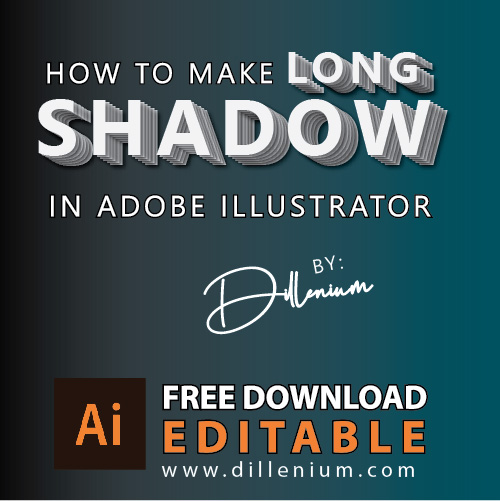
Long Shadow Illustrator (Video) – Adobe Illustrator Long Shadow Text Effect

Working on the trending ‘long shadow‘ illustrator text effect then here is the step by step video guide for beginners to create and download these type of text effect with editable AI file.   SEE ALSO: 25 Illustrator Tutorials for Beginners Quick and easy way to work on shadow effects. Let’s delve into it. Format: AI Editable Layers: Yes Illustrator Version: CS6 Long Shadow Illustrator Video Long Shadow Text Effect (Step by Step) Using Shape tool, create a rectangular box within the artboard and give it a color. Now take Text tool, and write text. Increase the size of the text and place it in the middle and center of the cardboard. Now go to Effects – Stylize and Drop Shadow (Note down the values in shadow window) Again go to Effect – Distort & Transform – choose Transform option. Turn on Preview mode Now make 6 copies Move Horizontal and Vertical Position and set it accordingly. Press Ok. Now change the color of text and easily change the text that you want. The editable text-shadow effect is ready to use.  

illustrator tutorial for beginners
Graphic design

25 Adobe Illustrator Tutorials for Beginners to Get Start – Video Tutorial

Adobe Illustrator is the adorable choice of graphic designers to design brands and illustrations. If you are learning graphics then these “Adobe Illustrator tutorials for beginners” might help you to grow your knowledge curve, skills, and expertise. Why Illustrator? In Graphic design, Adobe Illustrator is one of the best graphic design software for vector graphics. Vector graphics is the type of flexible and scalable illustrations that can zoom to maximum size without losing the quality. Adobe suit provides different types of graphics software according to different requirement of designs. Like; Adobe Photoshop good for creating pixel-oriented images (raster) most recommended for photo editing. In the same way, Adobe InDesign suitable for printing of books, brochures, newsletter and similar category stuff. Adobe Illustrator is far ahead by using that you can create logos and more suitable to design business brandings. Normally graphics experts design tutorials for beginners by choosing software tools/function to describe in details. Here, I tried to make it a little different. You know,..  why? Because the concept is more important to use the tool. When you draw something by carrying some visuals then it’s easy to know about the functions depth. On a personal note, when I was a beginner and learning graphics (still learning..), it was difficult for me to incorporate tools and functions within my design by carrying a concept. So, to make connections in design and grow my vision. I worked on premade tutorials by experts that helped to enhance my creativity and given me more in length knowledge to grow. Here in this post, I am sharing some of my Illustrator tutorials for beginners that can help to learn illustrator fast. You can watch all these video tutorials to follow the quick steps. 1) How to Create Initial Logo Design People love to have a logo using their initials. It’s a contemporary logo design technique to create minimalist logos using letters. In a real-time, lettering concept is in trend. Not only people making customized letters but also creating custom fonts to add more versatility in their work. In this tutorial, I tried to combine two letters by applying some design concept. It’s simple, easy and recommended for beginners to look around to get ideas to design initial based logos. SEE Tutorial: Initial Logo Design 2) Create Fold Effect Letter Logo Design Beginners can play with design by creating illusions. Just start to get this concept by creating a simple letter that shows a fold effect. Here, in this tutorial, I created a custom letter N and then applied some light effect to create folded illusion by using layers. SEE Tutorial: Letter N Logo with Fold Effect 3) How to Create Rope Brush in Illustrator Realistic ropes can be designed in different ways. The design process becomes easy if you create a custom rope brush to design your creatives. In this tutorial, I shared how to create rope brush just by using a pattern brush option. SEE Tutorial: Rope Brush Illustrator 4) Best Way to Create Grunge Brush in Illustrator Grunge effect can be add in your creatives to make it more stylish and eye-catching so I decided to create a custom grunge brush that will help to add in your graphics. Even though there are some predesigned grunge effects available in Illustrator but you can create custom grunge based on your design requirements. This tutorial provides a great for beginners to learn the grunge technique using Illustrator brush. SEE Video Tutorial: Grunge brush Illustrator 5) How to Use Blend Tool (Simple Tutorial for Beginners) “Blend tool illustrator” is the most powerful tool that designers can use in different ways based on their creativity. In this tutorial, I created different shapes using a blend tool. SEE Tutorial: How to use the blend tool Illustrator 6) Learn Step by Step to Create Glitter Effect in Illustrator It’s a simple and easy tutorial for beginners to create glitter effect in their design just by looking some easy steps. In this way, you can create high-resolution glitter textures without losing picture quality. SEE Tutorial: Create Glitter Effect in Illustrator 7) Blending Vector Art Tutorial for Beginners As I shared above how to use blend tool so here is the extension of this concept by make vector art using blend tool. It’s a recommended tutorial for beginner to understand the power of blend tool by watching this tutorial. SEE Tutorial: Blending Vector Art 8) Step by Step Logo Design Process to Create Camera Lens Logo SEE Tutorial: Create Camera Lens Logo for Photographers 9) Chalkboard Vector Background in Illustrator Chalkboard effect is one of the most desire background to add in creatives and designer love this. In this tutorial, learn the basic technique to create a chalkboard effect to add in creatives. SEE Tutorial: Chalkboard vector background Illustrator Tutorial 10) How to Design Wedding Invitation in Illustrator It’s easy to design wedding kits or related stuff using illustrator. You can watch this tutorial to learn how to create a wedding invitation in Illustrator step by step. SEE Tutorial: Step by Step process to Create wedding invitation in Illustrator  11) Adobe Illustrator Training Tutorial to Create Flat Illustration Flat design and illustration are so common to add in print and web creatives. It’s easy to learn the flat design technique for beginners by watching this tutorial. It’s a 1-hour free training video that you can see to create a flat illustration step by step. SEE: Flat Illustration Training using Adobe Illustrator 12) How to Create Smoke in Illustrator Creating realistic smoke in illustrator is just about learning technique. In this tutorial, you will watch the steps to create smoke in vector format using Adobe Illustrator. An easy tutorial for beginners. SEE Tutorial: Create Vector Smoke in Illustrator 13) Learn to Add Neon Glow Effect in Illustrator SEE Tutorial: How to add Neon Glow Effect in Adobe Illustrator 14) Tutorial to Create iPhone X Mockup SEE Tutorial: Step by Step iPhone X mockup tutorial 15) How to Design Golden Ratio Logo in […]

Pinterest pins
Graphic design

How to Design Pinterest Pins – Make Your Own Pins for Your Blog

If you are looking ‘How to design Pinterest Pins’ then this post is for you. In this post, I will share step by step process to make your own pins for your blog/website. As we all know that Pinterest is the most powerful tool to ‘increase blog traffic’ and in social media, Pinterest works well to drive traffic to your website. Engaging, attractive and highly optimized ‘Pinterest pins’ capture people attention to ‘Repin’. When I started blogging, I use to create normal images and it was not difficult for due to having ‘graphic design’ background. Later I come to know that to design ‘Pins’ for Pinterest most recommend as it’s different from normal images due to size. Normally, we place pins in infographic format so designing a perfect pin is the creative way of work. If you have a blog or looking forward to starting your own blog then this blog post can help you to understand the most creative way to design Pinterest pins. Before designing a pin, I want to share the recommended sizes to design it. I already mentioned the pin size details in my last post “How to Use Pinterest to Increase Blog Traffic“. So here is the revision about size. Recommended Size to Design Pins: 735 x 1102 Pixels 976 x 3642 pixels 735 x 2400 pixels 735 x 1200 pixels Standard Size Dimensions and Ratio Small – 600 x 600 [Ratio:1:1] Medium – 600 x 900 [Ratio 2:3] Long – 600 x 1260 [Ratio 1:2:1] Tools To Design Pinterest Pins If you are not a graphic designer and looking forward to knowing about some easy ways to design Pinterest pins then you can use below tool to quickly create beautifully designed pins. Design Pinterest Pins Using ‘Canva’ Canva is the graphic design tool that you can use to create beautifully Pinterest pins for your blog or website. Follow the step by step process to design pin using Canva. Access Canva website  Create Account and get the login. In search, just write ‘Pinterest’. A list of premade ‘Pins’ will be visible. Comfortably choose your preferred one. You can easily edit pins to place your content. Save the pin. Download to place on your blog post or Pinterest account. Make Your Own Pin Using Adobe Illustrator – Vector Graphic Design Software If you didn’t explore the Adobe Illustrator software then you can easily download the 1 month Trial version from Adobe website. Here is the link to download the software To know about the step by step process to design the pin using Illustrator you can watch this video to follow the quick steps. Step By Step – Design Pinterest Pins Using Adobe Illustrator Open the software Go to File, Create a new document Fill up the setting screen according to below details.  Now the Artboard is visible on the screen. Click on ‘Shape tool’ and drag a simple rectangle of the size of the artboard. Choose the color to ‘Black’. Now create another rectangle inside the bigger rectangle covering the artboard. To do this, you can drag another rectangle otherwise you can go to ‘Object’, choose Path, then ‘Offset Path’ and write the value 20. Press Ok. Now change the stroke color of the inner rectangle. Keep the fill color to none. Next, click on Text tool and write your content. You can choose a different font and other text settings. It’s best to follow steps using video tutorial as it’s simple, quick and easy to understand the overall design process. Here you can see the final view of designed ‘Pinterest pin’.

Adobe Illustrator Training Class
Graphic design

Adobe Illustrator Training – 1 Hour Training Class – Flat Design Tutorial

Here, I created Adobe Illustrator tutorial for beginners! basically, it’s an Illustrator training class of 1 hour to create a flat design illustration of a workplace. By watching a video tutorial, you can learn Illustrator fast just by following the basic techniques of flat design. Creating a practical example is the best way to learn. So I thought to create a video tutorial that will show you step by step to apply basic functions of illustrator. By the end of the tutorial, you will create a conceptual illustration of the office room. In this illustrator video tutorial, you will create a 3-dimensional room with office table, desktop screen, bookshelf, wall art, speakers, table calendar, coffee cup, and pencil.  This tutorial will help you to learn illustrator fast. As a matter of fact, it will guide how can you practically apply basic functions in a proper way. Illustrator is the great tool to create a diverse type of vector graphics. By using this tool, you can easily create professional graphics, logo design, printable and digital creatives in high resolution. Watch Illustrator Training – Flat Design Tutorial This tutorial is freely available for all who wants to learn vector graphics and will help you to ease the learning process. Tool used: Adobe Illustrator CS6. You can also apply the same techniques to a higher version of illustrator like Illustrator CC. Download Project File: Click Here… You can also join my Youtube channel to know more about graphics based on Adobe Illustrator. I create free video tutorials for beginners who want to learn Adobe Illustrator in a more professional way. Along with this, I also share information to get more work as a freelance graphic designer. Related Articles: Create Glitter Effect in Adobe Illustrator How to Create Grunge Brush Illustrator Adobe Illustrator tutorials How to Create Rope Brush Illustrator Golden Ration Logo # 2 – Floral Design Create Smoke Vector Effects in Illustrator How to Create Chalkboard Background in Adobe Illustrator How to Create Neon Glowing Light Effect iPhone x Vector Template – Mockup

flat logo design tutorial
Graphic design

Logo Design Tutorial – Flat Logo Design – Adobe Illustrator

Here, you can watch a logo design tutorial to create a modern flat logo design in Adobe Illustrator CS6 or latest version Illustrator CC. You can use the basic logo design techniques to create professional logos by watching this tutorial. It’s just a logo design idea! that I am sharing with you to create similar logos for new startups, businesses, and companies. New bloggers can also learn this way to create their blog logos. It’s a simple, easy and fast drive logo tutorial recommended to learn illustrator or graphic design. Logos design is the most diverse field that provides an opportunity to businesses to get their business identities in a form of conceptual and illustrative way to represent their business to mark a unique identity. As a graphic designer, I love to create professional logo identities for businesses and also create professional graphic design tutorial based on Adobe illustrator to share the skills with new learners. Flat Logo Design Video Tutorial – Watch Step by Step In this Illustrator tutorial, I created simple and stylish flat logo design. You can easily create this logo just by following the steps in the video. This video tutorial will help you to work with “shape tool”, colors effect, and “direct selection tool” and last but not the least with “puker and bloat”. Tool used: Adobe Illustrator CS6 Watch Duration: 06:22 Level: Basic – Mid Download Project File: Click Here! Final Words: Logo design is all about applying creativity to an innovative concept. Strong logo concepts create a powerful impact on business ROI. That’s the reason why every business startup invests money in business branding. Logo design is the first step to create any business identity. If you are also learning logo design and make it a business then strong logo design skills can help to create powerful concepts. Related Illustrator Tutorials: Adobe Illustrator tutorials Design Custom Grunge Brush Illustrator Create Your Own Blending Vector Art Make Chalkboard Background in Adobe Illustrator Create Neon Glowing Light Effect iPhone x Vector Template – Mockup Sparkling Glitter Effect Illustrator Rope Brush Illustrator Tutorial Golden Ratio Logo # 2 – Floral Design Create Smoke Vector Effects in Illustrator

how to create logo design step by step
Graphic design

How to Create a Logo in Illustrator Step by Step | Learn Logo Design (Lens)

If you are learning how to create a logo in illustrator step by step then this tutorial is for you. By watching this video you can learn logo design techniques to create professional logos or get the idea to create a custom business logo design. Logo design tutorials can be helpful for beginners to polish design skills. In graphic design, logo design is the more diverse and creative field that you can also choose to build professional logo design for different businesses or companies. As a matter of fact, every startup needs brand identity and logo is the first one to represent the business. So, if you are learning logo design techniques or pursuing your career in logo design then you may have a look in this tutorial to know the basics. How to Create a Logo in Illustrator Step by Step In this tutorial, I created professional 3d looking Camera lens logo that can also be ideal for photographers, photography bloggers, new startups, Lightroom or related. The overall design is simple but creative at the same time. By watching this video tutorial you can learn how to create a logo in adobe illustrator step by step. Tool used: Adobe Illustrator CS6 Watch Duration: 13:01 Level: Basic – Mid Download Project File: Click Here! Thanks for watching!!! You can also share your comments and logo design request if you are looking forward to getting any specific logo design tutorials. I will try to make a tutorial on the basis of people demand. You can also share your design suggestions in the comment section. Illustrator Tutorials Might be Helpful for you: How to Create Grunge Brush Illustrator Blending Vector Art Tutorial Adobe Illustrator tutorials Create Chalkboard Background in Adobe Illustrator How to Create Neon Glowing Light Effect iPhone x Vector Template – Mockup How to Create Glitter Effect Illustrator How to Create Rope Brush Illustrator Golden Ratio Logo # 2 – Floral Design Create Smoke Vector Effects in Illustrator Illustrator Logo Design Tutorials: Professional logo design – Abstract Bird 3D logo design tutorial -Modern Floral Logo How to Create 3D logo Design – Star Logo Logo Design Tutorials

blending vector art
Graphic design

Blending Vector Art – Illustrator Tutorial (3D Flower) – Graphic Design

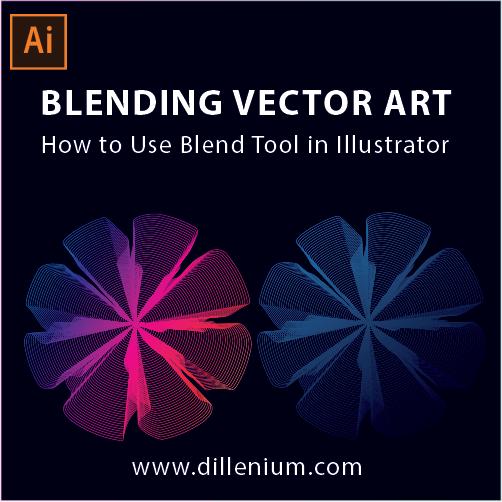
Blending vector art in Adobe illustrator creates magical objects. If you want to know how to use blend tool to create 3d flower then this video tutorial will help you out to create 3d looking blending art. Blend tool is the most powerful tool in adobe illustrator and if you know how to use the blend tool then you can create different shapes, object and abstract art based on your creativity. Here in this video tutorial, I tried to use the blend tool and create blending vector art based on abstract 3d flower concept. In graphic design, there is no limit to define and shape the creativity. Every person has unique creativity and blend tool help you to transform the concept as per your visuals. Blending Vector Art – Video Tutorial Tool used: Adobe Illustrator CS6 Watch Duration: 4:53 Level: Basic Download Project File: Click Here! Blending Vector Art – Step by Step Here are the Simple Steps to Create blending vector art or how to use blend tool in illustrator: Using Shape tool, create a circle only with stroke color. Fill color should be off. Next, create another circle and align it to the middle as a parallel circle. You can use Align tool for adjustment. Click ‘W’ from the keyboard or in tool section find ‘Blend tool’ and click on it by watching steps in the video. You can click on one anchor point of the inner circle and another anchor point of the bigger circle. Next, double-click on blend tool to open setting window and click on ‘specified steps’ from the menu and add 48 steps and press ok. Next, intact the Warp tool or press Shift R from the keyboard. Make adjustment in setting window: Width: 100%, Height: 100%, Angle: 45, Intensity: 100% (recommended). In next round, select middle anchor points of the circle and run the mouse zigzag to create rotating or blending effect. Apply this step 9 to all 6 anchor points to create this blending vector art. Thanks for watching!!! Illustrator Tutorials Might be Helpful for you: How to Create Grunge Brush Illustrator Adobe Illustrator tutorials Create Chalkboard Background in Adobe Illustrator How to Create Neon Glowing Light Effect iPhone x Vector Template – Mockup How to Create Glitter Effect Illustrator How to Create Rope Brush Illustrator Golden Ratio Logo # 2 – Floral Design Create Smoke Vector Effects in Illustrator

Graphic design

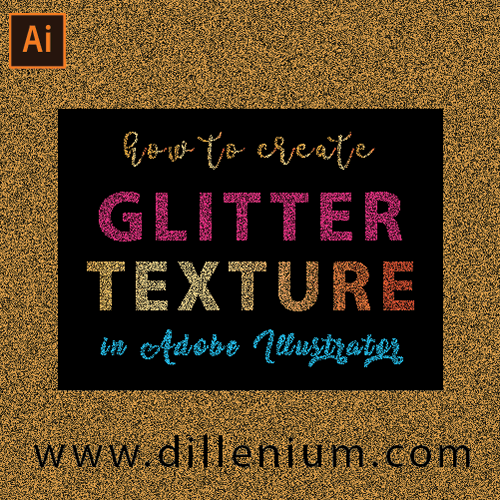
Glitter Effect Illustrator – Glitter Texture – Glitter Text – Illustrator Tutorial

In this Adobe Illustrator tutorial, we will learn how to create glitter effect Illustrator in the background and to text. Glitter or sparkle texture is the famous type of effect that designers use in their creatives to make more embellishment as per the design requirements. It’s a graphic design tutorial based on vector graphics. If you are learning illustrator and interested to learn glitter effect or texture then this video tutorial will help you get the basic technique that I used to create glitter. With the help of this tutorial, you can add glitter effect or texture in the various format in your design creatives. Glitter effect or texture is basically a sparkling type of effect that famous due to its shiny and shimmery look. These type of glittering textures can be designed in different ways here in this video tutorial, I tried to use the simple ways that can be easily understood by new learners. Glitter Effect Illustrator – Video Tutorial Tool used: Adobe Illustrator CS6 Watch Duration: 4:53 Level: Basic Download Project File: Click Here! Glitter Effect – Step by Step Here are the Simple Steps to Create Glitter Effect or Shimmery Texture in Adobe Illustrator: Create a background layer in Black by using rectangle tool. Drag simple rectangle and turned fill color to black. Write Text in rectangle frame. I wrote “Glitter Texture”. Next, create different bars using rectangle tool. Add different colors to text and bar layers. I used solid and gradient colors. Next, Select all layers. Go to Effect, Artistic and choose Film Grain Adjust setting as per the video details. Press Ok. Your Shimmery, sparking, bright or glitter effect is there. Thanks for watching!! Illustrator Tutorials Might be Helpful for you: How to Create Grunge Brush Illustrator Adobe Illustrator tutorials How to Create Rope Brush Illustrator Golden Ration Logo # 2 – Floral Design Create Smoke Vector Effects in Illustrator How to Create Chalkboard Background in Adobe Illustrator How to Create Neon Glowing Light Effect iPhone x Vector Template – Mockup

Graphic design

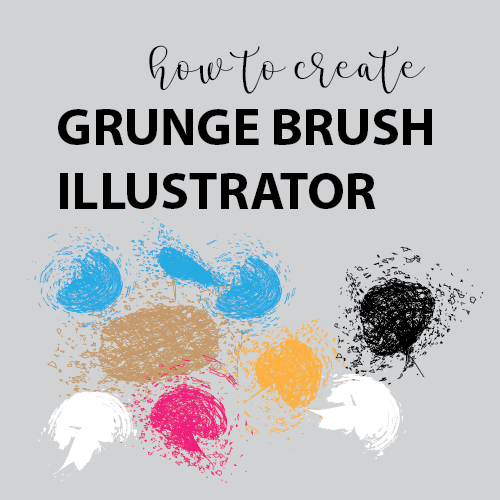
How to Create Grunge Brush Illustrator – Vector Graphics Tutorial

Today, I am sharing an easy way to create grunge brush in adobe illustrator. It’s a vector graphics tutorial showing you all the steps to create paint brush effect in your creatives. Grunge texture or grunge effect is the messy look in your design that gives a feeling that something in form of scattered particles or in small pieces lies in random positions. It’s a trendy and creative way to add these type of design in your illustration. You can also consider this as splatter brush effect like the paint brush that you can use in your graphics and use the technique to add in your graphics. On the internet, you can find various places where you can find premade grunge brushes but here in this tutorial, I am showing you step by step to create your own grunge brush with creativity. Grunge brushes in the illustration can be created in a variety of ways that depends upon grunge look and requirements. I use the simple and easy technique that you can easily adapt to create your own grunge brush with creativity. The grunge brush created in this video tutorial is 100% vector created in adobe illustrator CS6. The color mode is CMYK with the high print compatible resolution that you can easily use for print and web creatives. Watch Video Tutorial – Grunge Brush Illustrator Watch time: 7:55 Tool Used: Adobe Illustrator CS6 Download Project File: Click Here… Step by Step Points to Create Grunge Brush You can follow video tutorial and also follow manual points to create your own grunge brush in illustrator. Create Ellipse in oval style using shape tool. Turn off the fill color and make the stroke color to black. By using Knife tool, you can badly chop the oval. Place lines in like you create small squares in the oval. For the better view, watch the video tutorial. Select the overall shape and make the stroke thinner just by adjusting stroke weight to 0.5 pt. Go to Window – Align. Use Align tool, Make the horizontal Distribute Center. Select each layer and go to, Effect – Distort & Transform – Roughen. Adjust settings: Size – relative 24%, Details: 25/inch – corner (Mark check on Preview so you can see the changes). Now select each and everything together and go to, Effect – Distort & Transform – Transform and make transform adjustment. You can see the details at 3:11 in the video tutorial. Transform Settings: Scale: Horizontal & Vertical = 0%, Move: Horizontal =-92px  Vertical = 72px, Angle: 42 degrees, Option: Random, Choose Middle Point and Copy: 1 Press Ok to Transform settings Now select again and go to, Window – Brushes. Drag the shape to brushes window to create art brush. Now choose colorization method – Tints and Shades Press Ok Use Paint brush tool to draw Grunge brush. You brush is ready! Now you can expand the shape to add different colors to your brush. For an easy view, you can follow the video tutorial. Simple and easy tutorial to add grunge brush in illustrator. Illustrator Tutorials Might be Helpful for you: Adobe Illustrator tutorials How to Create Rope Brush Illustrator Golden Ration Logo # 2 – Floral Design Create Smoke Vector Effects in Illustrator How to Create Chalkboard Background in Adobe Illustrator How to Create Neon Glowing Light Effect iPhone x Vector Template – Mockup

fast food logo design
Graphic design

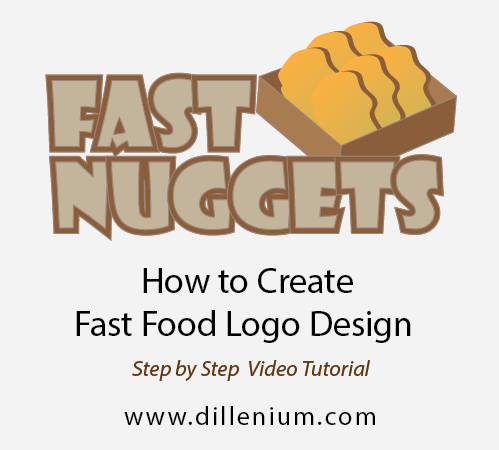
How to Create Fast Food Logo Design in Illustrator – Nuggets, Box

Here you can watch step by step process to create fast food logo design in Adobe Illustrator. If you are learning illustrator or interested to create your own logo design for your business then this video tutorial will help you to design a professional logo. Logo design can be design in a variety of ways here I designed the logo concept based on “Fast Nuggets”. It’s a small food restaurant based on fast food and a special product is Chicken Nugget. To illustrate this logo concept, I created nugget box, nuggets, placement in a box and added stylish text assemble to create a final look. The design process of this logo design is simple and you can add more embellishment to this design if you want to customize the concept. This video tutorial is recommended for beginner and learning professional logo design. You can download the template file and download to open in Adobe Illustrator for further customization. It’s a vector logo design, the color mode is CMYK and resolution is 300 PPI. You can use this logo design with your business name. If you are new to graphic design and interested to use this logo then you can download the 30 days trial version of Adobe Illustrator and edit the file. Download link is under video link. Check it out!! Watch Fast Food Logo Design Video Tutorial Tool Used: Adobe Illustrator CS6 Watch time: 11:23 Video covers following Topics: Create Nugget Box  0 – 3:30 Design Golden Chicken Nuggets  3:31 – 6:15 Place Nuggets in Box  6:16 – 8:02 Design Text 8:03 – 10:30 Assemble Design 10-31 – 11:23 Download Project File: Click Here… Font Used: ShowCard Gothic (default Illustrator font) If not available in Illustrator font library then you can download the font from here… Illustrator Tutorial Might be Helpful to Watch: How to Create Rope Brush Illustrator Create Smoke Vector Effects in Illustrator How to Create Chalkboard Background in Adobe Illustrator Golden Ration Logo # 2 – Floral Design iPhone x Vector Template – Mockup

rope brush illustrator
Graphic design

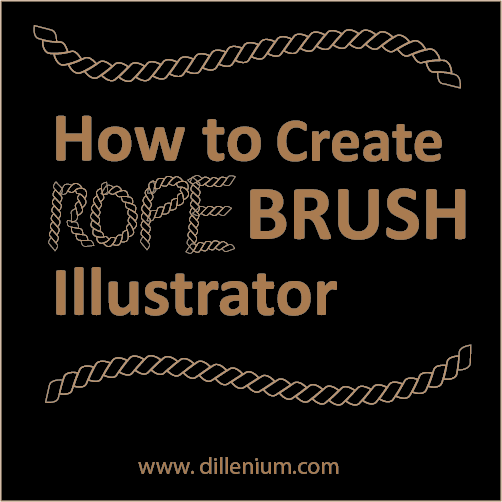
How to Create Rope Brush Illustrator – Rope Tutorial Illustrator

If you are looking how to create rope brush illustrator then here in this post you can watch step by step process. Rope illustrator tutorial will guide you in a simple way to design rope brush that you can use for multiple purposes of designing. Rope brushes can be designed in a variety of ways. If you are learning illustrator or the way to design ropes then you can start with a basic rope design. In this way, you will get design concept and later you can apply some diverse technique to create other types of rope design. This rope brush designed in Adobe Illustrator CS6. 100% vector rope design that you can easily use for web and print creatives. Watch Illustrator Tutorial – Create Rope Brush Illustrator Watch time: 9:16 Download Project File: Click Here… Step by Step Points to Follow Manually Steps to Create Rope Shape Using shape tool, create a simple ellipse in oval style. Click on pen tool, choose Convert Anchor Point tool or press Shift C from the keyboard. Click on middle first anchor point of oval and middle last anchor point. It will convert into sharp pointed edges. Now intact direct selection tool or press ‘A’ from the keyboard. Click on first pointed anchor point at the top of the oval and drag it to the right side. In the same way, click on last anchor point of middle last anchor point and drag it to the left side. Now click on the left middle anchor point and move it upside using upward arrow key. Now move the right middle anchor point and move it down. It will form a shape of a rope. Now go to Object – Path – Offset Path and create another rope shape. (Watch the video if you are not sure about the steps. Now using PathFinder – Subtract the background and add color to rope shape. Make a Rope Chain Now move the rope shape that we created with some angle on the right side. Create a copy of angular rope shape and paste in the same place and move it to the left side. It will create a rope structure in chain format. Create a rectangle using shape tool Keep the rectangle in middle and make it invisible like keep the fill and stroke color to ‘off’. Now select each and everything and create a brush. Add the Rope Structure to Brush Section Keep everything selected and press F5 to open Brush panel. Or, explore it from Window – Brushes. Drag the selection to Brushes panel and create the Pattern brush. Name the rope pattern. Use the Method Tints and Shades. Press Ok. Design Rope Brush Pattern Create a circle and select the rope brush from Brush panel. Drag a circle and you will get rope brush illustrator design. You can use in a different way like using PaintBrush tool and design it as you like :-) So this is the simple way to design Rope brush illustrator. For a quick view, watch illustrator tutorial to save time. All the best!! Illustrator Tutorials Might be Helpful for you: Golden Ration Logo # 2 – Floral Design Create Smoke Vector Effects in Illustrator How to Create Chalkboard Background in Adobe Illustrator How to Create Neon Glowing Light Effect iPhone x Vector Template – Mockup  

Scroll to Top