Illustrator Tutorials

blend tool illustrator
Graphic design

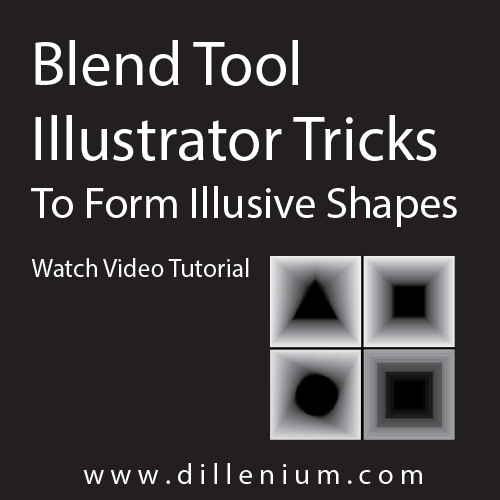
Blend Tool Illustrator Tricks to Form Illusive Shapes – Video Tutorial

You can use blend tool Illustrator to form illusive shapes just using simple tricks. You can watch this Illustrator video tutorial for a quick look! CC, CS6 and older version of Illustrator also support this concept. If you are working on conceptual creatives or learning illustrator then you can watch this tutorial as I created simple, illusion based pathways by using blend tool of Adobe Illustrator. Blend tool illustrator is the amazing tool! that you can easily use to blend different objects in a variety of ways. It’s all about applying creativity in your work. By using blend tool you play with different shapes, colors, effects to form different objects. Here, in this video tutorial, I created pathways that can consider as mysterious opening or some sort of illusions that you can easily apply in flyer, posters or in related designs. Even if you are learning Illustrator then this tutorial will give more concept to think ahead by applying simple blend tool tricks in your work. You can also follow the steps manually: 1) Create a normal Square using rectangle tool. You can invoke it by pressing M from the keyboard. 2) Go to Object – Path – Offset Path and create another Square inside. Offset value is: -1.8056 inches. 3) Change the color of small rectangle to Black and Big square will be light gray as you can see in video 4) You can check blending in both ways by keeping the stroke on a smaller rectangle in the middle and by removing it. Stroke basically plays a big role to create shape illusions in a different way. 5) Select both shapes together and Press W from the keyboard or click on Blend tool on the left toolbar. 6) Now click on one anchor point of big rectangle and one anchor point of small rectangle to blend shapes. 7) And, you will get the required shape with Square illusion as you can see in the video. 8) Now repeat the same steps by changing the middle shapes. You can change it to Circle, Triangle, Polygon or others and apply blend tool to form shape illusions. 9) And you are done!! Simple and easy and you can quickly do it in 2 mins. Blend Tool Illustrator Tricks Video duration: 5:50 Here is some more Illustrator tutorials might be helpful for you to learn: Golden Ratio Logo Design in Illustrator How to Create Smoke Vector Illustrator Graphics Create Chalkboard Background Effect in Illustrator Golden Ration Logo # 2 – Floral Design iPhone X Vector Template in Illustrator  

Graphic design

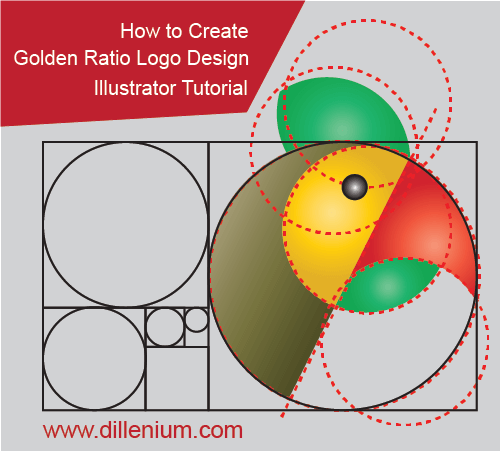
How to Create Golden Ratio Logo Design in Illustrator

If you are a graphic designer then you must know how to create golden ratio logo design in Adobe Illustrator. This post includes video tutorial to view step by step process. If you are a beginner and learning graphic design then you must curious to know… What is Golden Ratio? The Golden ratio is the universal average or proportion which is also called Golden mean or Golden section equivalent to 1.618. How this ratio comes from and why this ratio applies in graphics and art objects. Actually the objects in the universe like mountains, planet, human structure especially the face and many other things that naturally exist and created by Allah/God basically following this ratio. Fabonacci defines a series to calculate golden ratio which is quite similar to below series: 0+1 = 1 1+1 = 2 2+1 = 3 3+2 = 5 5+3 = 8 8+5 = 13 13+8 = 21 21+13 = 34 34+21 = 55 55+34 = 89 . . … and so on How the golden ratio comes from: Now, if you divide 89/55 = 1.618 In the same way, if you divide 55/34 = 1.618 As you will go higher with this series then the ratio will be almost or approximately equal to 1.618. So, on the basis of Fibonacci series, the golden ratio calculated. Now on the basis of this ration, we can create a Golden rectangle or Golden Square. For example: If you create a square like 100px x 100 px and divide the height to 1.618 then you will get a golden rectangle. In below video, I created golden rectangles that you can follow to design Golden circles. We can easily use these golden rectangles and golden spirals/ golden circles to design flyer, website, posters and logo designs. In this post, I embed my Youtube video tutorial to show you how to create golden ratio logo design in a simple and easy manner. So if you are learning golden ration logo design techniques then it would be helpful for you to get started. Watch Golden Ratio Logo Design Tutorial: Time duration: 11:05 First Part: What is Golden Ratio Duration: 0 – 1:50 2nd Part: How to Design Golden Rectangles Duration: 1:51 – 3:45 3rd Part: How to Design Golden Circles Duration: 5: 30 – till end 4th Part: Used Golden Circles to Design Golden Ratio Logo Design Have a look in our Golden Ratio Logo Playlist Download Video File: Click here… Final Words… If you have any question, requirements related with Golden ration logo design then please share with us. It will be our pleasure to facilitate your in your design process. You can also share your golden ratio logo design to share on Pinterest on Dillenium Pinterest account. Here are few logo design tutorials that might be helpful for you: Golden Ration Logo # 2 – Floral Design Create Smoke Vector Effects in Illustrator How to Create Chalkboard Background in Adobe Illustrator How to Create Neon Glowing Light Effect

how to design a wedding invitation in adobe illustrator
Graphic design

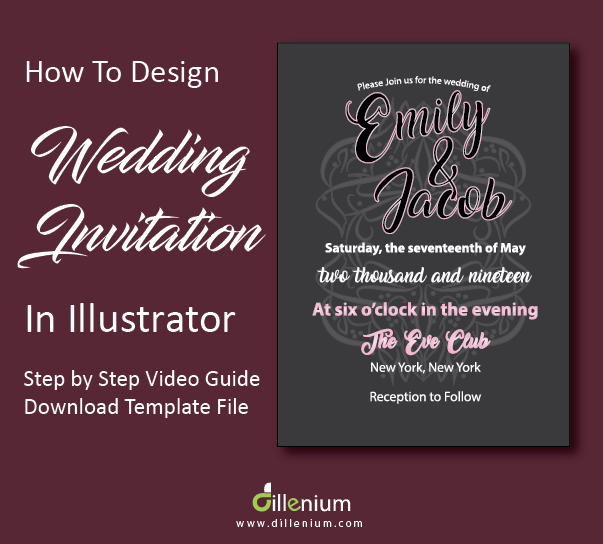
How to Design a Wedding Invitation in Adobe Illustrator

If you are exploring and looking how to design a wedding invitation in Adobe Illustrator then here you can find the way to create your own wedding invite by using all your creativity. I am showing you step by step to design modern wedding invitation with a custom touch. Wedding is the big day of bride and groom’s life and everybody wants to get perfect on their big day. From wedding dress to wedding kit especially the wedding invitations like a bridal shower, Save the date card, wedding day invitation, and other related invites have a big importance.  On a wedding day, everybody wants to get best of the best way Here, I want to share one thing that most of my customer, especially who wants custom wedding cards always looking for something exclusive so I ask them to share the idea so I can illustrate it accordingly to make your day memorable. Most people want something classy and others looking for modern and vintage style wedding invitations. On a wedding day, everybody wants to get best of the best way. Here, I am sharing step by step wedding invitation design tip that you can follow and create your own wedding invitation as you like. For your convenience, I created a video so it will be quite easy and time saving for you to watch all steps and learn the process in minimal time. I recommend you to watch the video then you can manually follow the steps as it will be quite easy for you learn. You can also download template file to work as sample. Download link is available at the end of this post below the video link. So let’s start now! To Start With… You need to install Adobe Illustrator. If you have Adobe illustrator then you can open the application. If you don’t have then you can easily download from below link Download Illustrator Note: 30 days trial version is free!  Download it and install to start designing. Step 1: Set Up New Document Go to File – Create New document Choose Size 5×7 inches Orientation: Portrait Bleed: 0.125 inches Color mode: CMYK Raster Effects – High 300 PPI Press Ok and go with these setting Step 2: Setup Rulers and Guide Go to Views – Rulers – Show Rulers Check on Smart Guide in View Menu As I shown in Video, Follow the process to manage guideline. Step 3: Start Designing Wedding Monogram First, take Ellipse tool from Shape toolbar. Now draw a long and thinner oval. (Check out video) Remove the stroke color and fill the color with Black. Now go to Object – Expand the layer Go to Window – Brushes Now select oval shape and drag it to Brush section Choose Art Brush and do the setting as shown in the video. Now you can use the Brush to design wedding monogram. For convenience, drag the guide in artboard and start your work. Good idea is to design One corner with a different style of patterns using the brush. Make design and Group it by pressing Ctrl G from the keyboard on PC. Now Press Ctrl C (to copy layers) and Press Ctrl V (to paste) and Right-click and Use Transform and Reflect Vertical. Press Ctrl G to group the layer and drag it to another right side. Now select both layers and click Ctrl C and Crtl F to place in the same place. Now again go to Transform and Rotate to 180 degrees and drag down. Select each and everything together and go to Object and Press Expand. Now change the color. Go to Window, Appearance, change the Opacity to 40% Now place the wedding monogram in the middle of your wedding invitation card. Step 4: Design Content Write Bride and Groom Name using Text tool. I used font Amarillo (You can check some best wedding fonts here) Select text and right click and choose “Convert to Outline” Now make a little angling to adjust the name in card. Add more text and write accordingly. (Check video for complete procedure). Write “Please Join us for the wedding of” and place it at the top of the card. Select it and go to Effect – Warp – Arc and Bend it to 19%. Now place all the text. For convenience, you can copy the text from wedding template. Download link is at the end of this post. Step 5: Save the Print Ready File Go to File, Click Save As PDF It will show the setting, Choose Adobe PDF Preset – High-Quality Print Mark check on option – Preserve Illustrator Editing Capabilities Go to Marks and Bleed – Mark check on “Use document bleed settings” Also mark check on “Trim Marks” Press Save PDF And now you are done! All the best… Your wedding invitation card is ready to take to the printer. Print it and share with your loved ones. You can let me know if you have any question. It will be my pleasure to help you out in case of query. Watch Illustrator Video Tutorial How to Design Wedding Invitation in Illustrator from Scratch Download Project File: Click Here… Wedding Related Content Might be Helpful for You: Best Wedding Planning Website Theme for Wedding Planner 10+ Inspirational Wedding Website Ideas will Touch Your Heart 20+Best Wedding Fonts Free Download For Wedding Invitations How to Create Your Own Printable Invitation in Illustrator – Wedding Save the date Follow my blog with Bloglovin

glowing neon effect illustrator
Graphic design

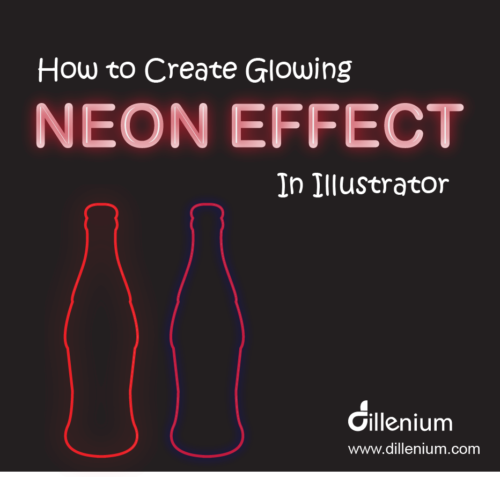
Creating a Glowing Neon Effect in Illustrator – Video Tutorial

The simple and easy way of creating a glowing neon effect in Illustrator. I used Coke bottle outlines and created glowing effect using simple tricks of layering, blur, and feature. Neon Effect glow is the demanding most required method that most of the designers used in creative designs especially for digital glow or to highlight illuminated objects. My design technique to provide is simple and easy to adapt. Most recommended if you are learning illustrator and looking forward to knowing the tweaks to create these sort of glow or neon effect. Video Tutorial: How I Create Glowing Neon Effect In Illustrator CS6 Duration: 9:48 Download Project File: Click Here… Manual Points to Create Neon Effect Here are the steps that I used to create this glowing neon effect: Create New document Create black background layer and Press Ctrl 2 to lock the layer You can use the Pen tool to create bottle outline. Now increase the size of layer stroke to 5 pt and color to Red and don’t forget to remove the fill color. Now Copy the layer and Paste in the same place and turn the stroke size to 1 pt and change the color to white. Make sure to keep it in middle. Now choose 1st layer with 5 pt and make another copy and keep it same place. Now select front layer and go to Effect- Blur – Gaussian Blur and adjust the blur intensity. To increase the size of a blur, you can change the stroke weight. Now the Neon Effect is in front of you. You can copy the same layers and Paste on the side and change the color to purple. Watch the video tutorial to view all steps from start to end. Final Words: I always welcome your suggestions and views to improve my tutorials. You can also share your views regarding this post and especially your version of the glowing neon effect. It will be my pleasure to post your submission to my Pinterest to share traffic with your website. Also, let me know if you have any other requirement then you can share with me and I will prepare tutorial accordingly. Thanks for watching! Related Tutorial Might be Helpful for you: Create Chalkboard Vector Background in Illustrator How to Create Smoke Vector Effect in Illustrator How to Design Initials Logo Design in Adobe Illustrator 6+ Logo File Formats You Need to Ask from Your Logo Design Company How to Design Folded Letters Logo Design in Illustrator 20 Websites to Sell Art and Crafts Online

chalkboard vector background
Graphic design

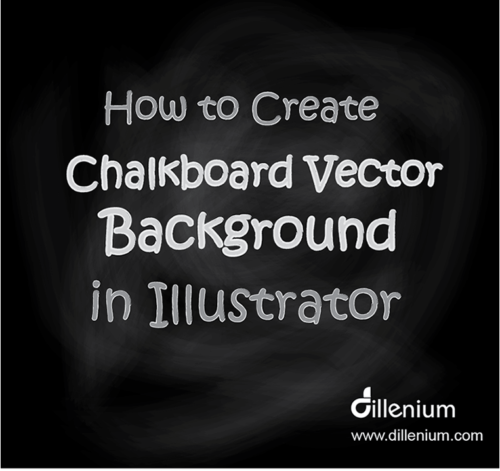
How to Create Chalkboard Vector Background in Illustrator

Now you can easily create chalkboard vector background in illustrator by watching all the steps in this Illustrator video tutorial. I used the simple and more realistic technique to design this chalkboard vector effect that easy to adapt if you are learning illustrator or beginner and looking forward to I used the simple and more realistic technique to design this chalkboard vector effect that easy to adapt if you are learning illustrator or beginner and looking forward to applying chalkboard background in your design creatives. Chalkboard textures are demanding and in trend due to vintage and classic look. You can use this chalkboard background to create printables, posters, billboards and other creatives. Watch Video Tutorial – Create Chalkboard Vector Background in Illustrator Watch time: 6:23 Download Project File: Click Here… Here you can manually follow the steps: Create New document, keep document size Create a black background layer with default black/grey gradient tool and keep the type radial. Lock layer by pressing Ctrl 2 from keyboard Now go to Effect – Texture – Grain Grain Type: Soft, Intensity – 45 and Contrast 75 (You can increase decrease as per your requirement of grains) Now select layer and go to Window – Transparency and adjust the blend mode to ‘Soft light’ Now Press F5 to intact Brush channel. Use default ‘Bristle Brush’ with the setting mentioned in the video Use the brush randomly in background layer and define chalk texture. You can make adjustments of color using color swatch. To make more realistic and blended look adjust the opacity. Now Vector chalkboard effect is there and you can use it in your creatives. You can also share your views regarding this post and especially your version of chalkboard vector background. It will be my pleasure to post your submission to my Pinterest to share traffic with your website. Also, let me know if you have any other requirement then you can share with me and I will prepare tutorial accordingly. Thanks for watching! Related Tutorial Might be Helpful for you: How to Create Smoke Vector Effect in Illustrator How to Design Initials Logo Design in Adobe Illustrator 6+ Logo File Formats You Need to Ask from Your Logo Design Company How to Design Folded Letters Logo Design in Illustrator 20 Websites to Sell Art and Crafts Online

smoke vector illustrator
Graphic design

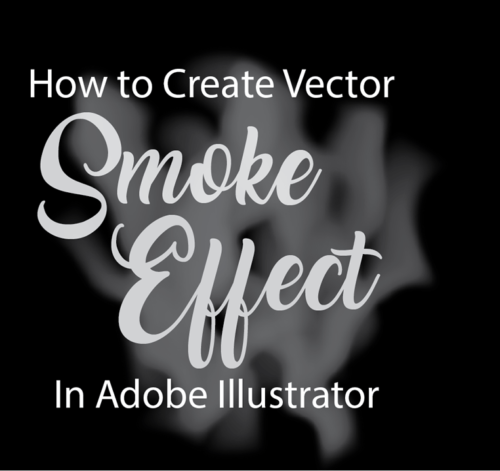
How to Create Smoke Vector Effect in Illustrator – Graphic Design Tutorial

Here is the simplest method to create smoke vector effect in Adobe Illustrator. It’s a video tutorial so you can easily watch all the steps to create smoke in illustrator. Smoke graphics can be used in a variety of ways like to create a smoke concept in posters, billboards, digital wallpapers or in custom type graphics. I tried to design smoke in a simple and most convenient way so if you are learning illustrator or beginners and interested to know the techniques then this tutorial must be insightful for you. Watch Smoke Vector Effect in Illustrator – Video Tutorial Download Project File: Click Here… Here you can follow the steps manually: Step 1 Create ‘New’ document Use Document workspace 560×560 pixels in size Color mode – RGB Resolution: 300 PPI Step 2 Create black background layer using rectangle tool. Press Ctrl 2 to Lock the layer. Using Rectangle shape tool, create 4 consecutive rectangles like in the video Intact Direct select tool by press ‘A’ from the keyboard. Smooth layers of the 1st rectangle and create a copy and past at the end of 4 rectangles. Step 3 Now use Mesh tool or Press ‘M’ from keyboard to intact Mesh tool. Add layers of each rectangle and add gradient grey color. (watch video to review steps) Now select all rectangles and go to Window – Transparency Adjust Transparency blending mode to screen and Opacity to 80% Select all rectangles and press shift R to intact Warp tool. Now double click on Warp tool and change the width to 250 px and height to 100 px. Now deform the rectangles randomly using warp tool. Reduce the size and select all rectangles. Go to Window – Stylize – Feather and change the value to 32. Now go to Window again and use Blue – Gaussian Blur. Adjust blur value Assemble rectangle layers in a smoke format as shown in the video. Voila! your smoke vector effect is ready to use. You can let me know if you have any question related to smoke vector effect or if you have any other requirement then you can share with me and I will prepare tutorial accordingly. Thanks for watching! Related Tutorial Might be Helpful for you: How to Design Initials Logo Design in Adobe Illustrator 6+ Logo File Formats You Need to Ask from Your Logo Design Company How to Design Folded Letters Logo Design in Illustrator 20 Websites to Sell Art and Crafts Online V Watch Illustrator Video Tutorial to Make This Effect

circle logo design
Graphic design

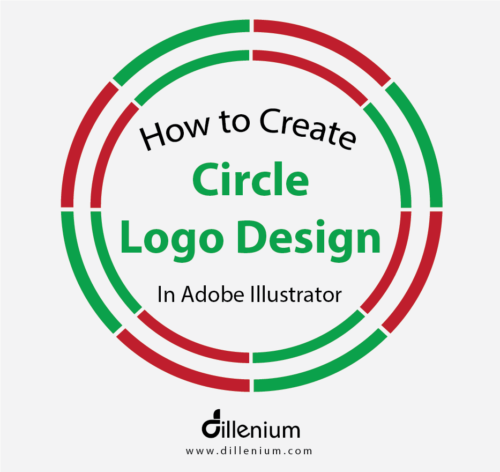
How to Create Circle Logo Design – Illustrator Tutorial

In this Illustrator tutorial, I created circle logo design with cut marks in multi-color layers. It’s an Illustrator tutorial for beginners who want to learn the basic techniques to design circle logo design with some tweaks. I tried to describe each step in the easy and most comprehensive way. Super easy for beginners want to learn illustrator logo design techniques. Circle logo design can be designed in several ways based on the design concept. This sort of circle logo can be used in a business logo as a frame or can be used as an app icon. For convenience, I created a video logo tutorial as it’s easy for beginners to understand basic technique in little time. By watching Youtube video, you can learn all the steps from start to end to design this circle logo design. Here are the steps that you can also follow: Using shape tool, create an ellipse by holding shift key from the keyboard. Now go to Object and choose path – Offset path and define value to 10 px. So you have 2 circles in front of you. Now take Rectangle tool and create intersecting lines at the center of the circle in a horizontal and vertical way. Keep the thickness of lines according to cut marks. For this, you can adjust the height of lines to keep it thick or thin. Draw the same lines diagonally. (watch video to see the line process) Now use rubber band select and select each layer. Go to Window – Pathfinder Choose divide option Now deselect and remove the unwanted areas and lines. Clean the circle and change the color from color swatch. To understand all steps, I recommend you to watch video as it’s super easy to understand the whole process. Here, you can watch circle logo design video: Watch Circle Logo Design in Adobe Illustrator Watch time: 4:50 Download Project File: logo design – Illustrator File Basic idea to design this logo is to share techniques and use the most common functions of Adobe Illustrator. By designing this logo, you will be able to use the proper function of Pathfinder and shape tool. You can let me know if you have any other requirement or query to design logos. Related articles might be helpful: Illustrator tutorials – Design in Adobe Illustrator New Apple iPhone vector mock up – iPhone X Design letter logo design in Adobe Illustrator

watercolor printable invitation
Graphic design

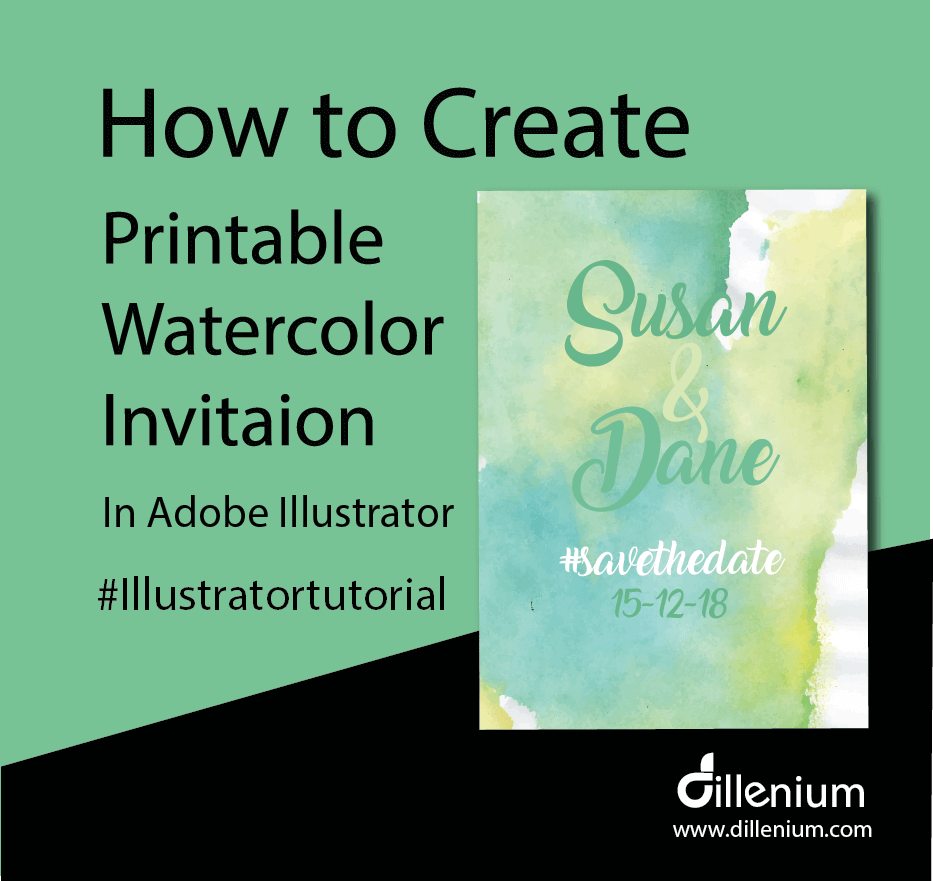
How to Make Watercolor Printable Wedding Invitations

Follow step by step to make watercolor printable wedding invitations in Adobe Illustrator. Video tutorial is linked to see all the steps from start. This tutorial will facilitate you to learn basic steps from start to end to design wedding invitations. You can use your creativity to add more embellishments as per your invitation requirements. Here, I created ‘save the date’ invitation. In this Adobe Illustrator tutorial, I designed professional watercolor printable wedding invitation template that you can easily use to print in the same way. We all need professional printable invitations on different occasions of life so it’s better to design it yourself just by following the few steps and save your design cost. My objective to do this illustrator video tutorial to guide about the basic steps from start to end to design this elegant Save the date invitation that you can use in a variety of ways. You can easily change the content and design with your creatives. Follow Steps by Step to Make Watercolor Printable Invitation Adobe Illustrator is the great tool to design professional graphics especially the vector ones. I love to design graphics using Illustrator. It’s simple, easy, editable and user-friendly so follow the steps with me and design your graphics in your own way. You can also download the invitation file. (link available at the end of this article). So let’s get started! Step 1: Define your printable invitation Artboard settings Create New document and use the width 5×7″ (standard size of invitation card) Keep the orientation to Portrait Use CMYK (recommended for print) and resolution to 300 PPI Bleed is 0.125″ (standard bleed size). Check your printer bleed requirement to go with this. Step 2: Set your Artboard Press control R to intact rulers Now define guides on top, left, bottom and right to work in proper order. You can watch the process in the video to get the complete idea to place guides within artboard. Step 3: Start Designing Go to File – Place Image file of watercolor background (You can find the image in download link). If you are using your image or watercolor background then make sure it needs to be high resolution and color mode should be CMYK. Resize the background image according to the size of your artboard. Make sure everything aligned properly with bleed lines. Strat writing invitation text using Type tool. To invoke the layer type T from the keyboard on PC. Now choose the font from font list. I used Amarillo that you can download from the download link below. Or follow the post where I wrote about best wedding fonts. Write complete text with proper formatting Conver text to outline. Step 4) Save Print Ready PDF File Go to file and choose Save as PDF option Now choose High-Quality print in Adobe PDF preset In Marks and Bleed setting, mark checks on Trim and Use document bleed option Click Save Now you are done! You have created a professional printable watercolor invitation template. You can take it to print to professional printing service. Here is the video tutorial that you can watch to design professional and print-ready invitations just in few minutes. How to Create Printable Watercolor Invitations in Illustrator Download Project File: Click here! Articles might be helpful for you: How to Design Folded Letters Logo Design in Illustrator Design Wedding Invitation in Adobe Illustrator Download Free Best Wedding Fonts for Wedding Invitation Wedding Planning WordPress Theme to Mark Your Day Download Free Elegant Wedding Fonts 10+ Inspirational Wedding Website Ideas How to Design Initials Logo Design in Adobe Illustrator 6+ Logo File Formats You Need to Ask from Your Logo Design Company

Apple iphone X vector template
Graphic design

4 Steps to Design New iPhone X Vector Template – Illustrator Mockup

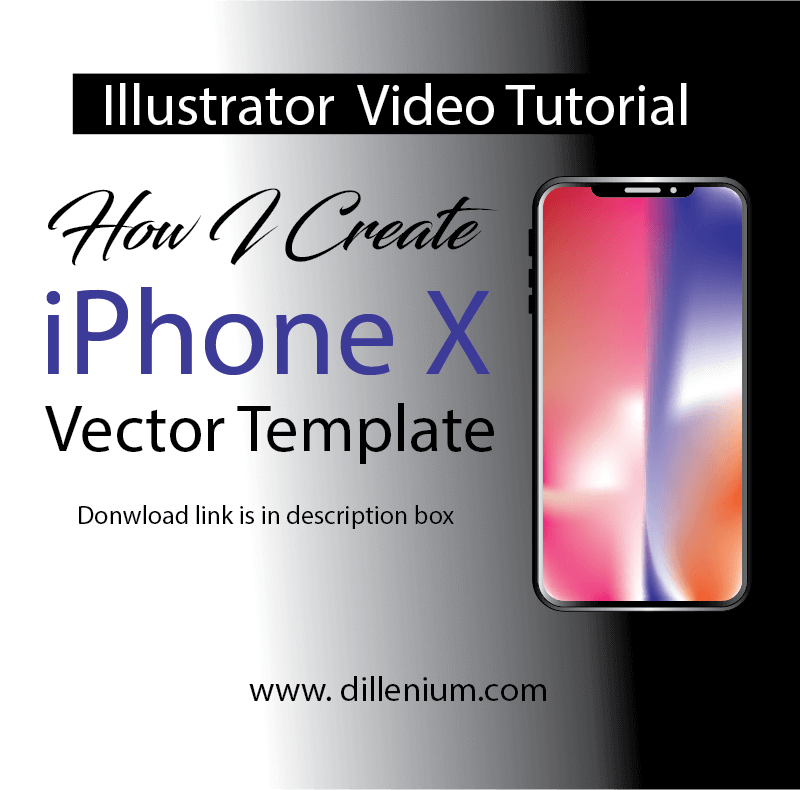
Easily design new iPhone X vector template in illustrator. Watch iPhone mockup video to learn the steps and download iPhone X mockup vector file template. I recently created new iPhone X vector template mockup that you can easily use in web and print products. The latest version of Apple iPhone X released and we are all so excited to use it as soon as possible. The design concept of iPhone is creative and engaging and everybody loved it when it revealed in iPhone launch event and gone viral on social media right after the event. I loved the design of new iPhone X and tried to design the layout in Adobe Illustrator in vector format. You can watch my iPhone X mockup video to view all steps and download file using download link at the end of this article. iPhone X vector mockup template is absolutely customizable and editable in Adobe Illustrator and you can make changes as per your need. How I design iPhone X Vector Mockup | Template I used the graphics software Adobe Illustrator to design iPhone X vector – template. Below are the 4 steps that you can follow if you are looking to design in the same way. Below are the 4 steps that you can follow if you are looking to design in the same way. Here are the technical specifications of iPhone X that I followed in my design process. Step 1 Add new document with the width 2.79″ and height is 5.65″ Color mode: CMYK Raster effect: High 300 PPI Step 2 Add Round Rectangle from Shape tool and make corner radius to 25 px. Draw round rectangle by covering artboard of 2.79×5.65″. Select rectangle and go to Object – Path – Offset Path and define offset value to 5 px Select the same rectangle again and repeat steps and this time define offset value to -5px Now you have 3 consecutive rectangles in front of you. Add color shade to Ist two rectangles by using swatch and gradient panel. (Explore panels through Window from top menu) Step 3 Remove stroke and color fill in 3rd rectangle. Press control U to intact Mesh tool. Make anchor points in 3rd rectangle and add colors. (watch video to view all steps) Step 4 Add round rectangle with 12px corner radius  and width 1.43″ and0.30″ height Add another rectangle with hard corners and place over the round rectangle Select both shapes and press Subtract from Pathfinder. (Explore panels through Window from top menu) Now place the shape at the top of the 3rd rectangle and make sure to keep it in the center. Add microphone and speaker icon by placing small size round rectangle and circle with whitish gray color Now add small round rectangle at the left side of iphone to show silent/ring button and volume up and down. And you are done now! Illustrator Video Tutorial – Design iPhone Vector Template Download Files – New iPhone Vector Mockup | iPhone X Articles might be helpful for you: How to Design Folded Letters Logo Design in Illustrator How to Design Initials Logo Design in Adobe Illustrator 6+ Logo File Formats You Need to Ask from Your Logo Design Company

Illustrator tutorial how to create letters logo design
Graphic design

Illustrator Tutorial: How to Design Folded Letters Logo Design in Illustrator

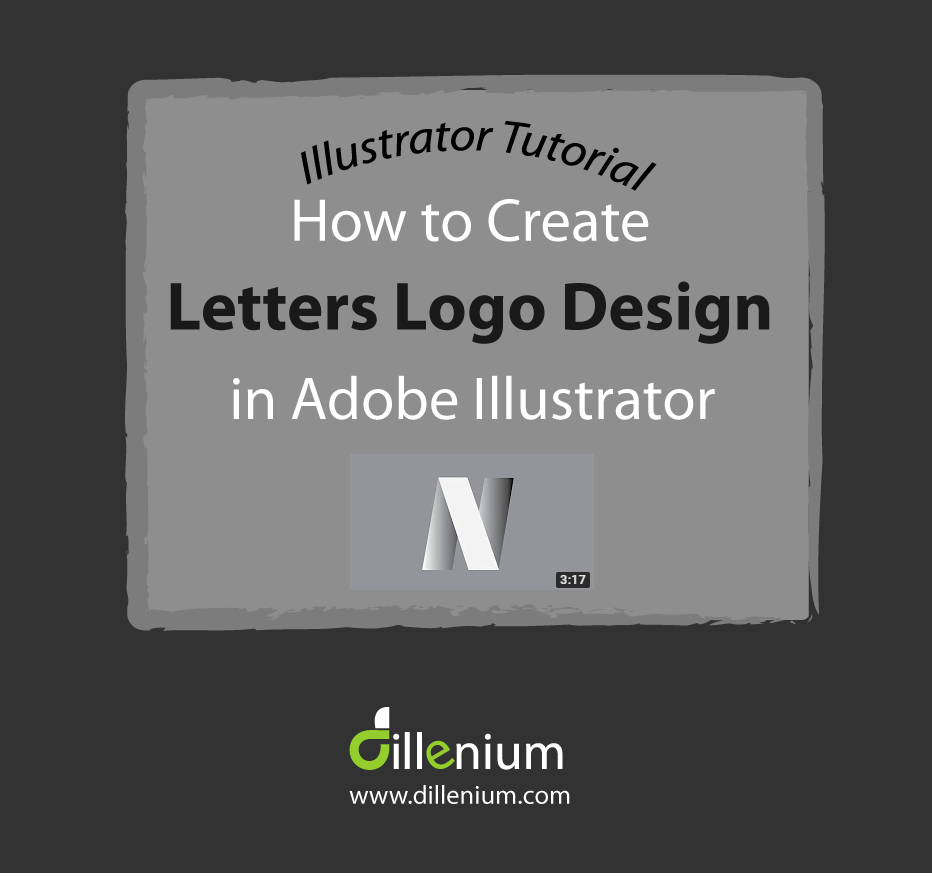
Adobe Illustrator is the great tool to design vector graphics in creative ways. I love to work on Adobe Illustrator for all my graphics work. In this tutorial, I want to share the basic techniques to design folder letters logo design to my readers. For this, I recently uploaded a video on Youtube to share best and easy technique to design folded letter N. Letters can be designed in a variety of ways but my objective to share folded letters technique in a more simplified way. Basically, folded letters are all about creating folded illusion using shapes and integrating anchor points.So let’s start the logo design process and have a look in video tutorial to have a quick look at all steps. Steps to follow for folded letters logo design Here are the points that you need to focus when designing folded letters look. Create a vertical rectangle using ‘shape tool’ or press M. Press A to intact direct selection tool. Click on bottom left anchor point and drag it to left to create a slider look. In the same way, click on top right anchor point and drag horizontally to right to create proper slider look. Now you have slider rectangle. Next, press control C and Control F to copy the rectangle on same place. Move the copied rectangle to the right side. Using the same technique and create another copy of rectangle and place on the right side. Now you have 3 consecutive slider rectangle. Click the middle rectangle and transform to reflect horizontally. Now align the middle rectangle to the top left of the 1st rectangle. To make perfect look on letter N, aligned and drag to the right side for proper angling. Now connect the 3rd rectangle to middle rectangle by aligning from bottom anchor points. Bring the middle rectangle to front. By going transform and arrange to bring front. Now add colors to create the folded look. Add the same color to 1 and 3 rectangle Add a different color to middle rectangle. Now you are done! You have folded letter N logo design in front of you. Here is the video to watch all the steps:  Watch time: 3 minutes 17 seconds Download: Project File – Letters logo design This tutorial is recommended for beginners who want to learn basic technique to design. If you have some better idea to design folded illusion then you can share with me. I will add your post on my website and also pin it promote your work. You can also watch my youtube channel to get more ideas and basic techniques to design concepts. Related Post and Videos: How to design pattern shapes in Adobe Illustrator Learn to design circular twist shape logo icon in Illustrator How to design circle logo design in Adobe Illustrator 6+ Logo Files Formats That Need to Ask from Logo Design Company Explore premade logo designs Explore Video Illustrator Tutorials

illustrator tutorial how to design initials logo design
Graphic design

Illustrator Tutorial – How to Design Initials Logo Design in Adobe Illustrator

Designing a logo is the most creative job that logo designer does by placing the required business concept on the place. Business initials in logo design are so common that most of the business owner wants to have. Initials logo design basically provide interactivity in design by placing first letters of the business name. It could be an abbreviation or might be the first two letters of the business name. Today, I am going to share some initials logo design techniques and ways that you can use to design your business logo. If you are a beginner and learning “how to design logos” then this post is for you as you can learn the basic concepts of initials logo design and keep the designing unique. Points to Consider when Designing Initials Logo Design When you design initials logo concept then make sure to consider below points: Letters should be readable even if you are applying the concept. Letter layers should be designed with proper layout and should not intermingle the concept. Make sure to design with proper mathematics. Use guide and rules for this. Letters layers should be proportionally designed in a proper order. As a best practice, make a raw design before converting into the vector. Layers combination should be clean and concise. Take care of broken layers. Convert the design into outline before creating the final file. Here is the link of some good and conceptual initials Logo Design on Pinterest Example to Watch “Initials Logo Design” I recently designed the initials logo for a business group starting with the letter J and P. Basically the business concept based on the simple and minimalist theme so I tried to connect J&P by adding some variation in design. In below video, I captured one of the concept of logo design process to share with my audience. Here are the steps that you can note down to design the similar concept: Using Text layer, write letters. I wrote JP using Lucida Console font Convert letters into outline Reduce the gap between letters using backspace or through the mouse. Now change the color of both letters Draw a simple stripe using the Pen tool. (You can see the stripe design in video) Rotate the stripe with 30-45 degree angle. Place the stripe in the middle of J and P Select all layers together. Go to Pathfinder and click the Divide option. ( You can find Pathfinder under Window in top menu). Now select the downside of J and P and move down with the ‘down’ arrow key. In the same way, add some lift at the upper part of JP by selecting the layers. (Watch video for better view) Now Join the middle part of the stripe by selecting the layer using Pathfinder And now you are almost done with the design of initials. Move to add business name and tagline. Here is the video to watch all the steps:  Watch time: 3 minutes 30 seconds Download: Project File – Initial logo design You can design your logo in a variety of ways as per the business concept. It’s all about adding creativity in design to show the business concepts in a unique way. You can also share with me if you would like to share your logo concepts and anything that can informational for me and my audience. Related Post and Videos: How to design pattern shapes in Adobe Illustrator Learn to design circular twist shape logo icon in Illustrator How to design circle logo design in Adobe Illustrator 6+ Logo Files Formats That Need to Ask from Logo Design Company Explore premade logo designs

Scroll to Top